Exchange Card Notes
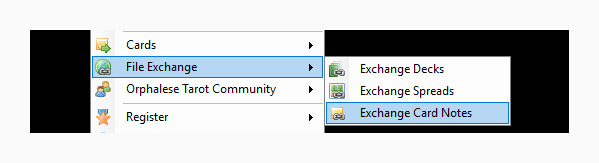
The Card Notes Exchange tool is launched by selecting Exchange Card Notes off the File Exchange menu.
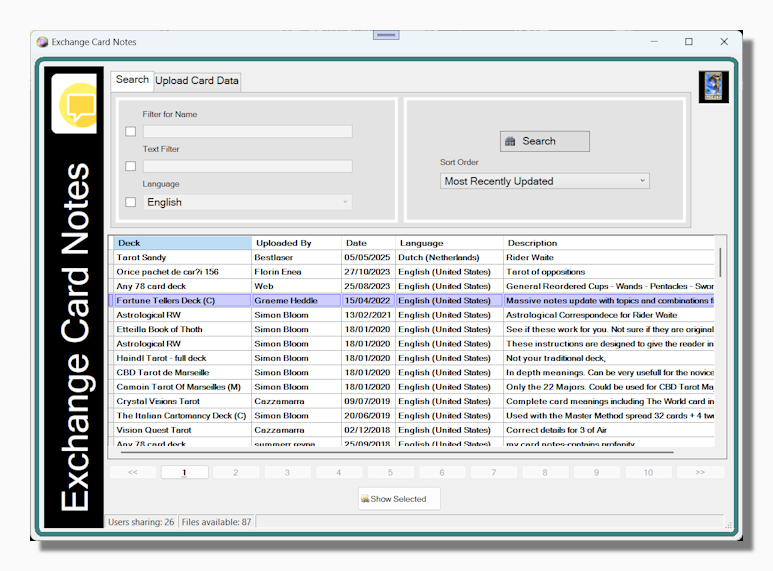
The Card Notes Exchange tool allows you to share Card Notes with other users and to download and use the Card Notes that they have shared. The top part of the screen has two tabs, each with its own set of controls. The first tab allows you to filter the Card Notes that are shown, helping you to find notes for a specific deck or in a specific language. By default, when you first open the tool, all the available Notes are shown.
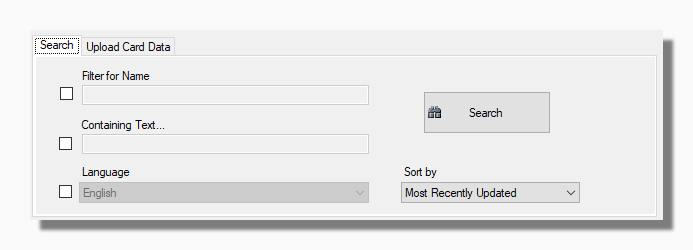
You can use the following filters:
Name: Show only Card Notes containing specific words in the name of the associated deck.
Text: Search for specific key words anywhere in the notes.
Language: The language of the notes.
Sort By: This lets you specify the sort order of the results.
Filters can be combined. For each filter you want to use you have to check the accompanying box in order to enable you to set the filter. When you have set the filters you are interested in press the search button to show all matching results.
Tip: The program lets you use various sets of notes to accompany each deck as described in the section on Pop-up Notes. The notes which are shared using this tool are always the Little White Book kind of notes that accompany a specific deck or a deck with a certain number of cards.
If you have a set of notes that you have written, edited or translated and would like to share it with other users then you can use the upload tool on the second tab:
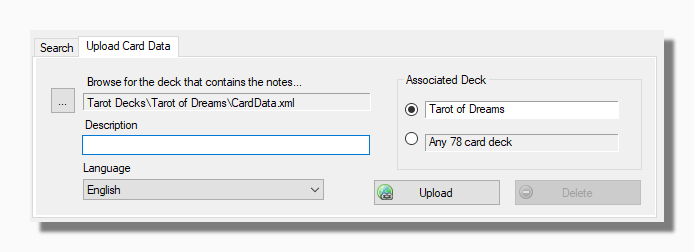
First browse for the deck that contains the set of notes you want to upload. Once the deck is selected the other controls become enabled. In the Description field you can put any information you like that you think will be helpful to other users. This text appears in the Description column of the main search results grid.
Before uploading select whether the notes are only relevant to the deck they accompany or if they could be usefully used with any deck containing that number of cards. Finally select the language that the card notes are in and press the Upload button to send the notes to the server. If you make a mistake the Delete button lets you stop sharing any set of notes you have uploaded previously.
Previewing and Installing a set of Card Notes
Select the notes you are interested in and press the Show Selected button to bring up the following preview window:
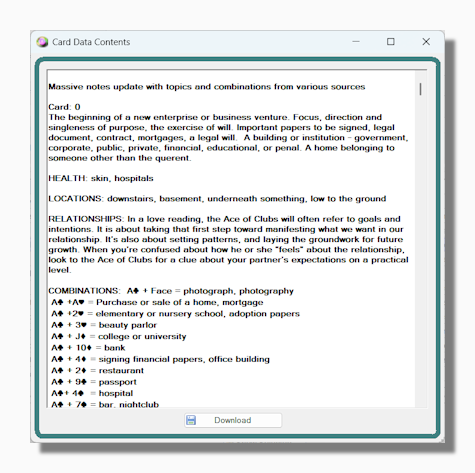
Here you can preview the notes prior to download. If you think you might want to use them with the program just press the Download button to install them.
Tip: Downloading Card Notes is a restricted feature that is only available to registered users.